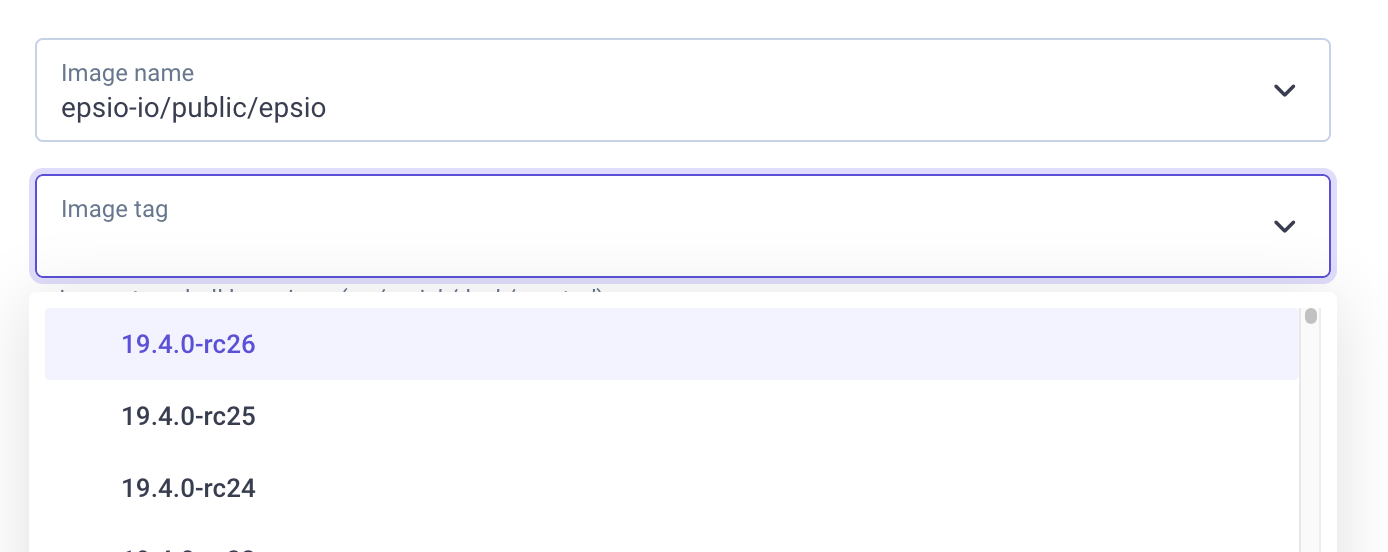
How do I add a public GCP Artifact Registry container image?
Last updated: February 4, 2025
Context
When adding a container image from a public Google Cloud Platform (GCP) Artifact Registry, you need to configure the registry settings correctly to access the images and their tags.
Answer
To add a container image from a public GCP Artifact Registry:
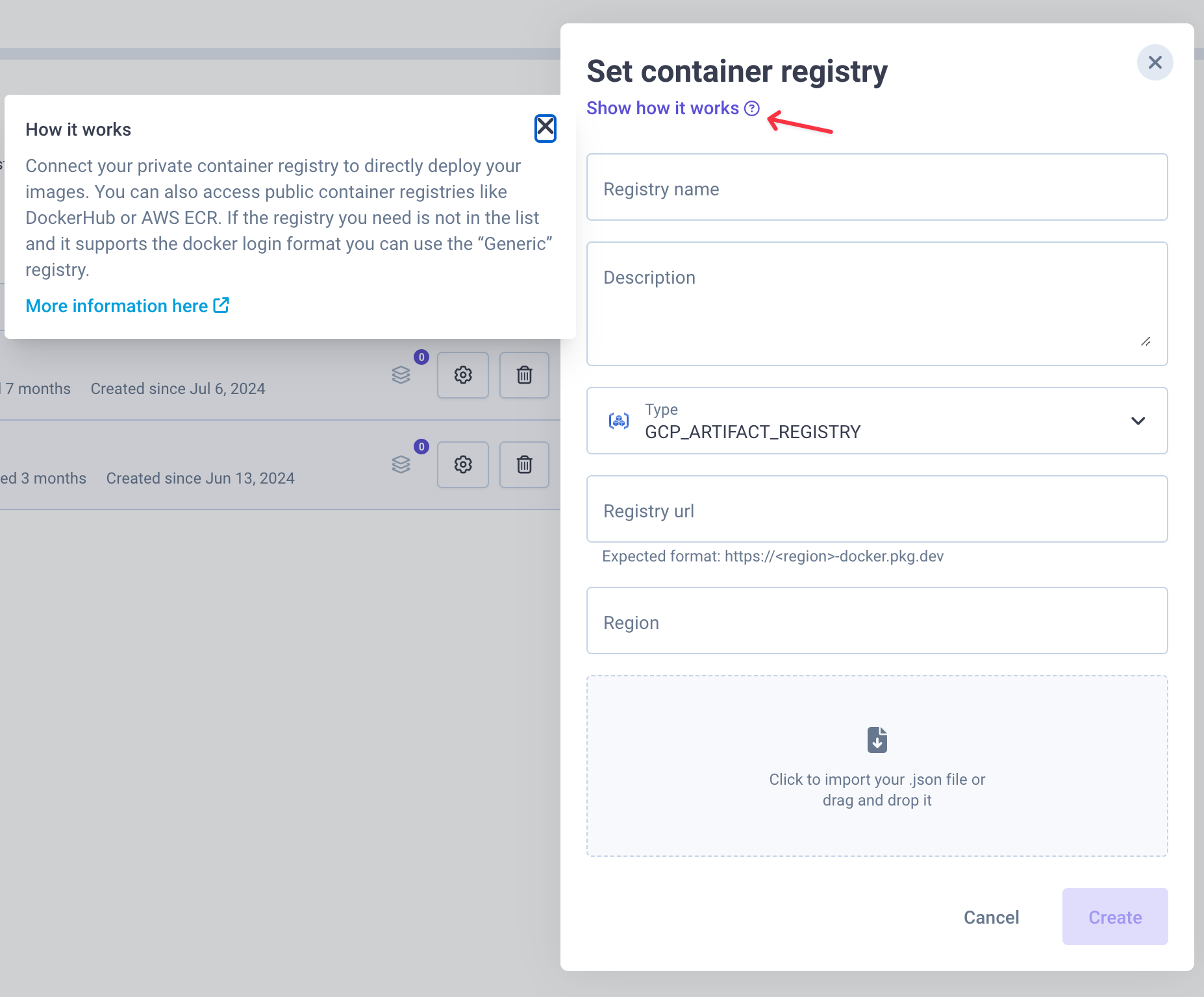
Select "Generic registry" as the registry type
For the Registry URL, enter the base URL of the GCP Artifact Registry (e.g.,
https://us-docker.pkg.dev)When creating the application, use the full path without the base URL as the image name (e.g.,
epsio-io/public/epsio)
Here's an example of the registry configuration:
After configuration, you'll be able to see and select from the available image tags: